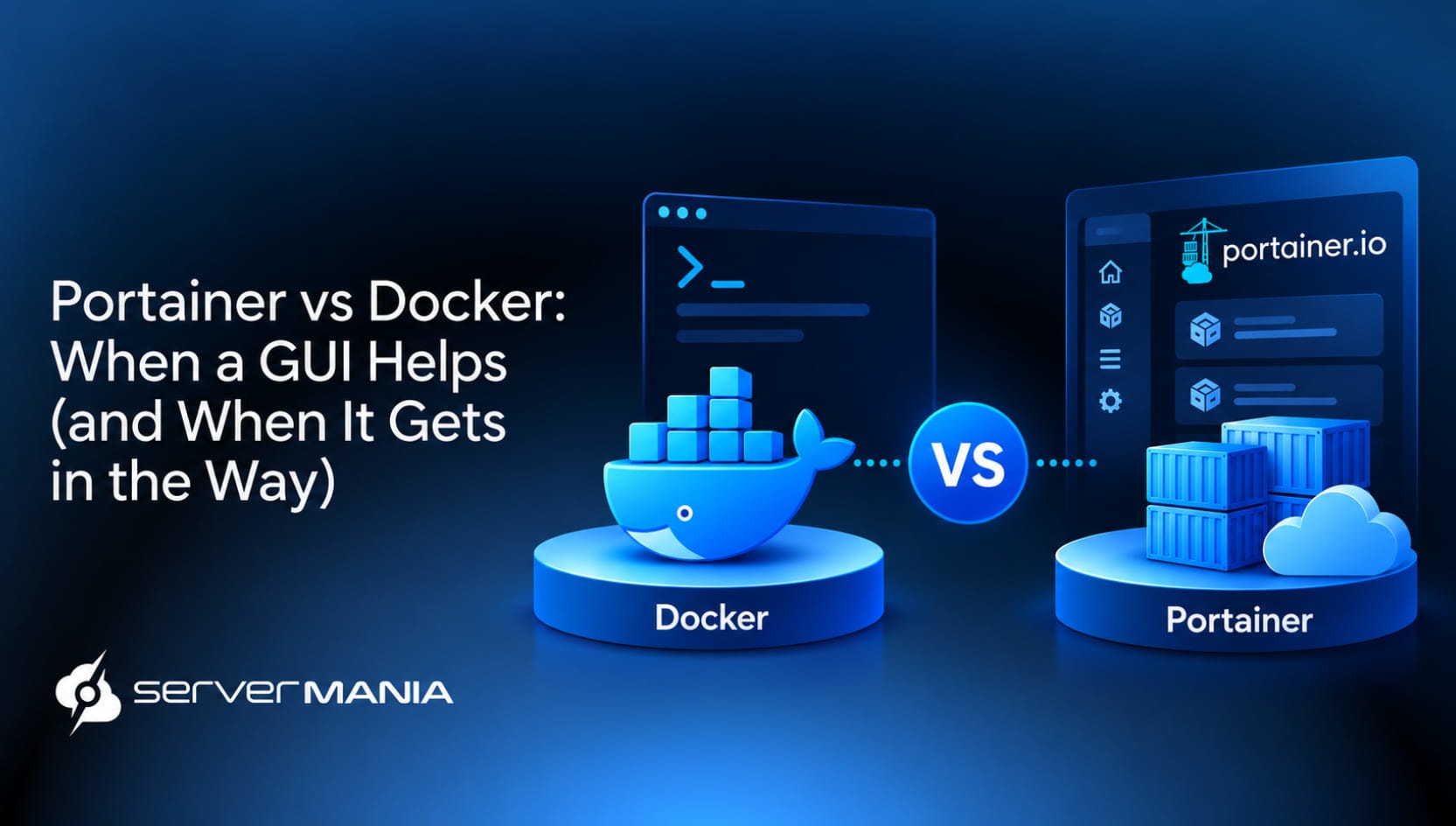
Portainer vs Docker is a comparison between managing Docker’s containerized applications through a graphical user interface (GUI) or solely through the command-line interface (CLI). Understanding where Portainer fits and where Raw Docker makes more sense is crucial for developers, system administrators, and teams managing containers to streamline their operations.
ServerMania stands as an infrastructure provider for containerized applications through Dedicated and Cloud Servers (AraCloud) designed for demanding workloads. Our infrastructure supports teams running Docker workloads across development and production environments.
That’s why this guide compares Portainer and Raw Docker, covering their differences, use cases, and how you can use both together to take advantage.
Portainer vs Raw Docker Explained:
Comparing Portainer vs. raw Docker always comes down to how you interact with and manage Docker containers. For instance, Docker can run independently, while Portainer typically requires an underlying container platform to operate. Docker provides a command-line interface for container management, such as creating, deploying, and managing containerized applications, while Portainer provides a web-based UI designed to simplify common container management tasks.
See Also: Docker Tutorials for Beginners
What Is Raw Docker?
Raw Docker is the foundational containerization platform that packages applications into lightweight containers. SaaS platforms and media streaming services are one of the typical users of Docker for high-performance application deployment. Docker manages container objects such as images, containers, networks, and volumes through its CLI and API.
Docker is ideal for developing and running containerized applications using orchestration tools like Docker Swarm or Kubernetes.
Docker features include the Docker Engine, Dockerfile, Docker Hub, and Docker Compose:
- Docker Engine is the core component that creates and runs Docker containers and handles the container runtime, networking, storage, and communication with the host system.
- Dockerfile is a text-based configuration file containing instructions for building a Docker image. It defines the image, code, dependencies, settings, and commands.
- Docker Hub is a public registry for storing and sharing Docker images. Developers and teams use it to find existing images, publish their own images, and pull images.
- Docker Compose allows defining and running multi-container applications using a single YAML configuration file.
However, Docker is primarily managed through the command line, which can have a steep learning curve for beginners. That’s where Portainer comes in…
See Also: What is a Docker Container
What Is Portainer?
Portainer is a free open-source web application. Portainer only supports deploying applications using predefined templates. So, Portainer requires Docker to be installed first.
Instead of relying entirely on the command line, users interact with a browser-based interface to view running containers, Docker images, networks, volumes, and other resources from a central dashboard.
In short, Portainer is a web application for managing Docker environments. It sits on top of an existing container platform and provides tools for common administration tasks, such as creating and deploying containers, managing images, reviewing logs, setting environments, and working with Docker Compose.
The best part is that Portainer allows user management with defined access levels.
Portainer allows you to:
- Manage multiple Docker Swarm clusters from a single interface.
- Create and delete Docker Swarm services without using the CLI.
- Monitor Swarm resources and manage services in environments.
- Deploy and manage applications across multiple Docker instances.
Note: Portainer can be installed on Windows, Linux, and macOS. Once installed, you can easily access Portainer by navigating to the URL: http://localhost:9000. The default username for Portainer is ‘admin‘.
Portainer vs Docker: Key Differences
We now know that Portainer and Docker serve distinct roles in any containerized environment. Docker is the foundation, and Portainer is the management tool on top. The main differences boil down to how you manage Docker environments and how much direct control you have.
Let’s explore:
| Raw Docker: | Portainer: | |
|---|---|---|
| Primary Interface | CLI and terminal | Web-Based GUI |
| Management | Docker commands | Graphical management |
| Docker Images | Pull, build, tag, and manage through CLI | Manage images through the dashboard |
| Docker Compose | Native Docker Compose and compose file workflows | Deploy and manage Compose-based stacks |
| Multiple Containers | Commands or Compose | Manage multiple containers from one interface |
| Docker Swarm | CLI-based cluster management | Visual Swarm management |
| Automation | Strong support for scripts and CI/CD | More focused on interactive management |
| Learning Curve | Requires familiarity with Docker commands | Easier for common management tasks |
| Access Control | Direct access to Docker capabilities | Simplified access through the Portainer interface |
The main differences are in how each approach handles Docker resources and how you interact with them. Raw Docker works directly through the CLI, giving users access to Docker’s native commands, while Portainer adds a graphical UI over the same underlying Docker resources.
Portainer is just a visual way to view and manage containers, images, volumes, networks, and stacks.
Note: Before you ship changes to production, make sure your Portainer and Docker components are properly tested and upgrade them according to your maintenance schedule.
When to Use Portainer vs Raw Docker
The decision between using Portainer or Raw Docker really depends on the task you want to streamline. We’ve learned that it’s all about managing Docker environments. We’re going to review some workflows and try to identify when Portainer makes sense and when Raw Docker is enough to achieve your targets.
See Also: Docker Vs Kubernetes
When Raw Docker Is the Best Option
Raw Docker is just ideal whenever you need direct access to all Docker commands, configuration, and automation tools. This depends on whether you need surface-level interaction or full control through the CLI so you can dig deep into scripted workflows, Docker Compose, and other production necessities.
Here are some factors that make Raw Docker an ideal fit:
- Automation: Using Docker CLI commands and scripts to automate potentially repetitive container management tasks is easier with Raw Docker.
- CI/CD Tasks: Using Docker CLI commands is easier when you want to deploy applications through automated development and production workflows.
- Docker Compose: Managing multi-container applications with version-controlled compose files and configurations is advantageous here.
- Configuration: Accessing Docker’s full range of configuration options without relying on a graphical interface is much more practical.
- Debugging: Having direct access to the entire toolkit makes it easier to inspect logs, processes, and running containers directly through the terminal.
- Management: Building, pulling, tagging, and managing Docker images directly through Docker commands is faster and more efficient through the CLI.
- Precise Control: Configuring containers, networks, and volumes with granular control over each resource provides much more precision.
The main takeaway here is that Docker is strongest when you require direct control, automation, and management of repetitive workflows. The CLI is a natural fit for development, Docker Compose, and scripting/debugging projects. With the knowledge upfront, it’s just faster.
See Also: Docker Security for Small Teams
When Portainer’s GUI Makes Sense
Portainer’s GUI is useful when you want a simpler way to perform routine container management tasks without entering Docker commands manually. Its visual interface provides a central place to manage containers, images, volumes, networks, and Docker Compose stacks.
Here are some factors that make adding Portainer make sense:
- Visual Management: Managing Docker containers through a graphical UI instead of the CLI can be a great way for complex operations, suitable for beginners.
- Easier Administration: Administration is easier by performing common container management tasks without memorizing Docker commands.
- Multiple Environments: Managing multiple Docker instances and connected environments from one interface is easier than using the CLI.
- Resource Management: Viewing and managing Docker images, volumes, networks, and running containers visually could be advantageous.
- Swarm Management: Managing Docker Swarm clusters and services through a centralized area with graphics interface.
- Faster Troubleshooting: You can review container status, logs, and configuration details without switching to the terminal.
- Routine Deployments: Deploy applications and stacks through a visual workflow when manual CLI commands are unnecessary.
The main takeaway is that Portainer’s GUI simplifies routine container management by putting common Docker tasks into a single visual interface.
It is especially useful for managing multiple environments, reviewing resources, handling containers, and performing administrative tasks without relying on the CLI for every action.
Using Both Portainer & Raw Docker
Portainer and Raw Docker do not have to be separate approaches. Portainer provides a convenient way to manage Docker resources through a web interface, while the Docker console and CLI remain available for tasks requiring direct access.

Using both lets teams handle routine administration through Portainer while keeping command-line tools available for development, troubleshooting, automation, and advanced configuration.
A typical workflow might involve deploying a Docker application with Docker Compose, using Portainer to monitor the resulting Portainer containers and other services, then switching to the CLI when deeper debugging or configuration is required. This approach also lets teams use Portainer’s visual management features without changing the underlying Docker workflow.
Portainer & Docker Compose Examples:
Portainer and Docker Compose work well together when you want to get the convenience of a graphical interface while keeping application configurations in a Compose file.
You can use Compose to define your services and Portainer to deploy, monitor, and manage:
- Compose-First Workflow: Define the Docker application in a Compose file, deploy it through Portainer, then manage the resulting stack from the Portainer interface.
- CLI and Portainer Workflow: Create or update the Compose configuration from a terminal, deploy it with the following command, then use Portainer to monitor containers.
- Portainer-First Workflow: Create a Compose stack directly in Portainer, review the configuration through the web interface, then use Docker CLI tools for debugging.
There is no strict limitation on how you combine Portainer and Docker Compose. You can switch between the graphical interface and the CLI based on the task at hand.
The important part is understanding how each tool works so you can take advantage!
See Also: How to Choose the Right Container Hosting Provider
Docker Containers & Container Management at ServerMania
When it comes to containerized applications, companies with demanding infrastructure needs often require enterprise-grade hosting solutions with scaling in mind.
ServerMania provides enterprise-grade hosting infrastructure, including dedicated and cloud servers. With facilities across Canada, North America, and Europe, we provide businesses with low-latency and high-throughput servers. This global data center presence is a competitive advantage for ServerMania.
High security and a 99.99% network uptime SLA are key value propositions for ServerMania. In addition, ServerMania’s key offerings also include colocation services, managed services, and customized hosting solutions. So, we encourage you to explore our Dedicated Infrastructure and Cloud Platform (AraCloud).
💬If you have any questions, get in touch with our 24/7 customer support or book a free consultation today to discuss your next project with an expert. We’re available right now!
Portainer vs Raw Docker: Frequently Asked Questions
Portainer CE vs. Business Edition?
Portainer Community Edition, also known as Portainer CE, provides a free management interface built on an open-source base and supported by the Portainer community. Portainer Business Edition adds features designed for teams, larger environments, and organizations that need additional management.
See Also: What is Docker CE, and How is it Different from Other Versions?
Can Portainer manage Docker on a virtual machine?
Yes, Portainer works with Docker running inside a virtual machine, provided the environment meets its supported requirements. This setup gives administrators a graphical interface for managing containers without needing to access the VM through a terminal for every task.
Does Portainer support ACI environments?
Portainer has supported ACI environments as part of its broader container management capabilities, alongside other infrastructure types. Before deploying an ACI-based environment, check the current Portainer documentation for support status and available features.
Can I use Portainer on Mac/iMac (macOS)?
Portainer itself runs as a server-side management app, while Raw Docker on Mac typically runs through Docker Desktop or another supported Docker environment. Once Docker is available, Portainer provides a web interface for managing the connected environment.
How To Create a Data Volume for Portainer?
When installing Portainer, you should use persistent storage to retain its configuration and management data between container restarts. Use the following command to create a dedicated Portainer data volume:
docker volume create portainer_dataThe volume can then be mounted to the Portainer container during deployment, allowing its configuration to persist across restarts and upgrades.
Does Portainer have an active community?
Yes. Portainer community contributes through feedback, reporting bugs, documentation, discussions, and other forms of contributing to the project. Users who find issues or have feature requests should use Portainer’s official support and reporting channels.
Was this page helpful?
About the author